How to export text messages from an iPhone to a computer, as files you can open
To export text messages from an iPhone to a computer, back the phone up to that computer with Apple’s own software, then open the backup with a program that reads the message database inside it and writes the conversation out as files: PDF, TXT, HTML, CSV, or RSMF for an eDiscovery platform. Apple gives you the first half for free and no way to read it; the second half is what this page is about. It is written for Windows, where there is no Messages app to lean on. A Mac with Messages syncing can print a thread from Messages itself, and that route has its row in the table below and its own question in the FAQ.
Jump to: why there is no export button · which route · export, download, save or transfer · step by step · which format · what the export contains · what it cannot do · FAQ · where next
Why is there no export button in Messages?
Because Apple designed a conversation to leave the phone whole in only two ways, and neither of them is a file. One is a backup, to iCloud or to a computer, which holds the messages inside a format only the phone is expected to read back. The other is sync, Messages in iCloud, which shows the same threads on your other Apple devices. Forwarding and copy and paste move one message at a time, which is a way to quote a message rather than to export a conversation. And the web is closed too: the list of apps Apple publishes for iCloud.com, read on 11 September 2026, runs from Calendar and Contacts to Photos and Reminders and does not include Messages, so there is nothing to sign in to and download from.
That leaves the backup as the one copy of your messages a Windows PC can hold, written by Apple’s own software without any offer to open it. Exporting text messages to a computer is therefore two jobs: making that backup, and reading it.
Which route gets the messages onto a computer?
The backup route, for a whole conversation with its dates intact. The others are worth knowing because each has a case where it is enough:
| Route | What you end up with | What you need | Whole history? |
|---|---|---|---|
| Computer backup, then a reader | Files: PDF, TXT, HTML, CSV, RSMF | A Windows PC, a cable, Apple Devices or iTunes, and a program that reads the backup | As far back as the backup holds |
| Messages on a Mac | A printout or PDF of a thread | A Mac signed in to the same account, with Messages in iCloud syncing | What was scrolled into view |
| Forward to email | The text of the messages you ticked | Only the phone | No, and without per-message dates |
| Copy and paste | The same, one message at a time | Only the phone | No |
| Carrier records | Numbers, dates and counts; no content | Your account login | No content at all |
Forwarding works for three messages and not for three hundred, and the address you forward to should not be tied to your Apple ID, or the messages come back to your own devices as iMessages instead of landing in a mailbox. A carrier holds records of messages, not the messages: a log that a text passed between two numbers on a date, useful for one question and useless for what was said. The Mac route prints what Messages has loaded on screen, with the timestamps the window was showing, and on a thread spanning years the slow part is coaxing it to load the history at all. What each of these routes keeps and what it drops, compared one against another rather than listed, is in copying text messages from an iPhone to a computer.
Export, download, save, transfer: is there a difference?
Not in what you do, so this page covers all four words. Export and download both mean getting a copy of the messages onto the computer as files you can open, which is this page. Save usually means keeping them from being lost, which starts the same way and then asks about the settings that quietly delete messages before any backup exists: how to archive text messages on an iPhone is that question. Transfer sometimes means moving messages to a new iPhone, which Apple handles itself when the new phone is set up and which needs no export at all. The one word that hides a real difference is backup: a backup is a copy the phone can be restored from, and reading it is the step everything below is about.
How do you export text messages from an iPhone to a Windows PC?
Five steps, and the phone is needed only while the backup is being made.
1. Install Apple’s software
The Apple Devices app from the Microsoft Store is the current choice on Windows 10 and 11; iTunes works the same way if it is already installed. Neither needs you to sign in to make a local backup. Apple’s own steps are in its instructions for backing up an iPhone with Windows and in the Apple Devices guide to backing up, and the labels quoted below are taken from those two pages.
2. Back the phone up to this computer
Connect the iPhone with a cable, tap Trust on the phone and enter its passcode. Tick Encrypt local backup and choose a password you will not lose: Apple’s page on encrypted backups says there is no way to recover it, and an encrypted backup is also the only kind that carries your saved passwords, Health data and call history, and the only kind that should sit on a shared PC. Then choose Back up all of the data on your iPhone to this computer and press Backup Now in Apple Devices, or Back Up Now in iTunes. Budget free disk space at what the phone reports under iPhone Storage; the backup usually comes out smaller. The first one takes 10 to 50 minutes as a rule of thumb and later ones are incremental.
Where the backup lands depends on which build of Apple’s software wrote it,
per Apple’s page on
locating backups:
%USERPROFILE%\Apple\MobileSync\Backup for the Apple Devices app and for
iTunes installed from the Microsoft Store, and
%APPDATA%\Apple Computer\MobileSync\Backup for the older iTunes downloaded
from Apple’s site. What is inside, and why nothing there is called sms.db, is
in where Windows stores iPhone backups.
3. Open the backup
Launch ChatExport and it lists every backup it finds in those two folders, with the date it was made and the iOS version. It asks for the password if the backup is encrypted, uses it for this run and never saves it. The phone can be unplugged from here on.

4. Pick the conversation
The list is what the backup holds: every conversation the phone had on the day the backup was made, by contact name, group chats included. The preview shows the newest 300 messages and the whole thread is one click further, and searching for a word or a phrase covers the entire conversation regardless of what is on screen.
5. Choose a format and export
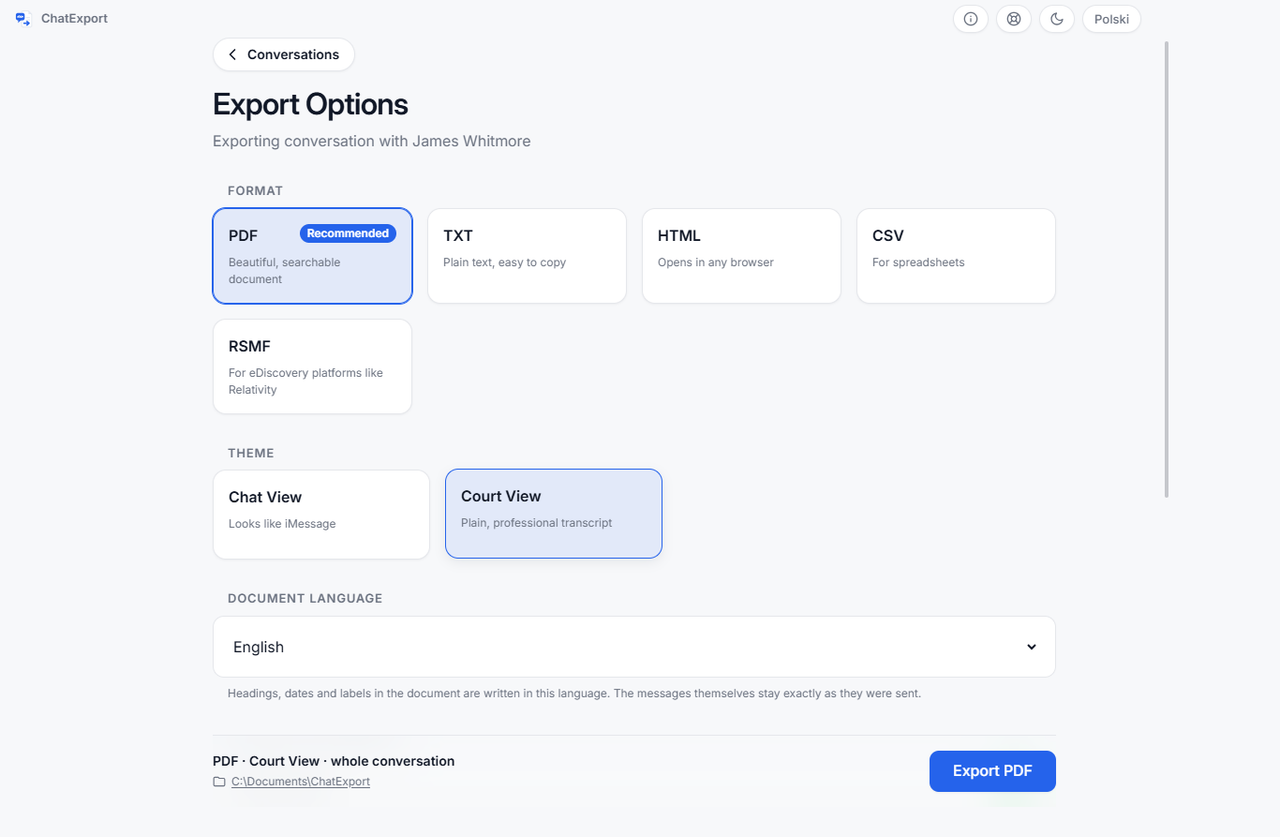
Pick PDF, TXT, HTML, CSV or RSMF, a date range or the whole span, and whether
photos and attachments ride along. Each export writes a small .sha256 file
beside the document, a fingerprint taken as it was made, and a PDF carries a
Document Integrity page that names the device, the iOS version, the backup date
and the SHA-256 of the message database as it sits in the backup. A checksum
compares bytes, not intentions: it shows the file is the one that was made, and
nothing about who wrote the messages or whether the conversation is genuine.
Which file format should you choose?
PDF for reading and filing, CSV for a spreadsheet, HTML for a browser, TXT for quoting, and RSMF only if a law firm asked for it.
| Format | What it is for | What to know |
|---|---|---|
| Reading, printing, filing | Two layouts: Chat View looks like the phone; Court View is a plain transcript with the sender on every line. The complete guide to PDF export covers both | |
| CSV | Excel, Sheets, your own timeline | Fourteen columns: timestamp, sender, is_from_me, service, text, attachments, reactions, edited, deleted, edited_at, previous_versions, retracted, recovered_deleted, deleted_at. Written with a UTF-8 marker and Windows line endings so Excel opens it without mangling accents or emoji |
| HTML | Opening in any browser, zooming photos | One .html file plus a folder beside it named <name>_files holding the photos and attachments. Keep the two together; move or zip them as a pair |
| TXT | Quoting into a letter or statement | Plain text |
| RSMF | eDiscovery platforms | A container for loading a conversation as data rather than pages. Ask before choosing it |
The CSV columns are where an export carries what a screenshot cannot: whether a message was edited and what it said before, whether a message was unsent and the trace of where it stood, whether it was recovered from Recently Deleted within Apple’s window of 30 to 40 days and when it was deleted, and which network each message travelled over.
What does the export contain that the phone’s screen does not?
The record rather than the picture. A timestamp on every message, to the second, with the time zone stated on the title page. Both sides named on every line. Edits, with the earlier wording, and unsent messages marked where they stood. Delivery and read receipts where iOS recorded them. Attachments in the positions they were sent, and a named card for anything a PDF cannot draw, such as a video or a voice message. And since iOS 18 a green bubble can be RCS rather than SMS, so the document names the transport each message actually used instead of guessing. The longer comparison is screenshots versus an exported document.
What can this method not do?
These limits belong to ChatExport and to the backup it reads, and they hold whichever program you pair the backup with.
- It cannot read iCloud. With Messages in iCloud switched on, Apple documents a computer backup as not including data already synced and stored in iCloud, including iMessages and text messages. The phone still holds what it has recently fetched, so scroll the conversation back on the phone and back up again. The program reads the marks that setting leaves and warns before you export. Are text messages saved in iCloud has the settings paths for each iOS version.
- It cannot recover what the phone deleted. Keep Messages set to 30 Days or 1 Year removes older conversations at the source, and they are in no backup made afterwards. Messages deleted by hand sit in Recently Deleted, which Apple documents as 30 to 40 days on iOS 16 and later, and can be included, marked, through a switch that is off by default. Past that window, only an older backup still has them, and the text of an unsent message is gone from the phone in any case, leaving the trace that it stood there.
- It reads two things only. An iPhone backup in one of the two folders above, and the export file WhatsApp writes when you choose Export chat, which is the one route here that also works from an Android phone. Android SMS is outside it. A backup made by another program in another folder is not found.
- It does not run on macOS. The programs that read a backup on a Mac are in the comparison linked from the FAQ.
Frequently asked questions
Can I export text messages from an iPhone to a computer for free?
The backup is free: Apple’s software writes it without an account. Reading it is not built into Windows, and the free routes are Messages on a Mac, for a thread that is already there, and forwarding, for a handful of messages. The trial here costs nothing to look with; what it withholds is in the cost answer below.
Do I need iTunes?
No. The Apple Devices app from the Microsoft Store makes the same backup on Windows 10 and 11. iTunes still works if it is installed: the Store build writes to the same folder as Apple Devices, the older download to a second one, and the program checks both.
Can I export from an iPhone I no longer have?
Yes, if a backup of it exists on the computer. Everything after the backup reads from the folder, so the phone can be broken, sold or handed back.
Are photos and attachments included?
Yes, as an option on the export screen, at a size you choose. In a PDF they appear in place; in HTML they are copied into the folder beside the file; in CSV they are listed by name. A video or a voice message cannot be played inside a PDF, so the document prints a named card for it instead.
Does the export include iMessage as well as SMS?
Yes. iMessage, SMS and MMS live in the same database on the phone, so one conversation comes out whole whichever network each message travelled over, and the document names the transport per message. RCS is included where iOS stores it locally, which RCS messages on iPhone explains.
Can I export text messages from an iPhone to a Mac?
Messages on a Mac prints or saves a conversation as PDF if the thread is on the Mac, which needs Messages in iCloud. The programs that read a backup on macOS are in the best iPhone message export software of 2026; this program is not among them, because it runs on Windows only.
What does it cost?
The download is a free trial: it opens the backups in those two folders, shows the whole thread on screen one click past the newest 300 messages, and exports in every format, with a watermark on every page and a stop after the 50 most recent messages until there is a licence. The one-time licence is on the pricing page, and it can be bought there. There will never be a subscription.
Where to go next
Read the first of these if the backup is the part you are unsure of, the second if the document is.
- How to back up iPhone text messages to a PC without iCloud, the first half of this page in full, with a check that the messages made it.
- How to export iPhone messages to PDF, the document half, from layouts to verifying the file.
- How to export an entire iMessage conversation, when the thread runs to tens of thousands of messages.
- How to archive text messages on an iPhone, when the question is keeping them rather than getting them out.
Before installing anything, open a finished file. The sample exports are this program’s output over an invented custody dispute: a PDF in each layout, the HTML with its folder of photos, the CSV with its fourteen columns, and the checksum beside each.