Copy text messages from an iPhone to a computer: four routes, and what each one keeps
There are four ways to get an iPhone conversation onto a computer, and they are not four versions of the same thing. Photograph the screen, forward the messages out of the Messages app, make a backup on the PC and read it, or hand the phone to a transfer program over a cable. They cost different amounts of effort and they keep different amounts of the conversation, and the second difference is the one that matters later.
The short answer, if you only want one: make a backup with Apple’s own software, then read the messages out of it. It is free to make, it keeps more than any other route on this page, and it leaves you holding a file you can go back to. That route written out step by step, with Apple’s own button labels and the two folders a backup lands in, is how to export text messages from an iPhone to a computer; this page is for choosing between the four routes first.
The free routes, and where they stop working
Both of these are on the phone already, cost nothing, and are the right answer for a small job. It is worth being precise about where each one runs out, because that boundary is usually the reason somebody starts searching.
Photographing the screen. Everyone starts here and for twenty messages it is genuinely fine. It stops scaling quickly: a year of an active conversation is hundreds of images, dates appear only where the phone decided to draw a separator, and nothing in the resulting pile says which conversation it came from or in what order. Working out what that actually costs is its own page, and where the free methods break down does the arithmetic rather than asserting it.
Forwarding messages out of Messages. iOS lets you select individual messages in a conversation and send them on. For a handful of messages this is the fastest route in existence and needs no software at all. For a conversation it is impractical, because the selection is per message, and what arrives at the other end is the text rearranged into a new message rather than a record of the original exchange.
Both routes share one property worth naming plainly: you choose what is included. That is perfectly fine when you are showing something to a friend. It is the first thing anybody asks about when the document is meant to settle a disagreement, and neither route gives you a way to answer.
Making a backup on the PC, which is the route that keeps the most
Apple’s own software writes a full backup of the phone to the computer, free, with no third-party tool involved in the copying. On Windows that is the Apple Devices app from the Microsoft Store, or iTunes on older setups.
This is the step that does the real work, because the backup contains the message database itself
rather than a rendering of it. Everything else on this page is about what you then do with that
file. The step-by-step version is in
how to back up iPhone text messages to a PC without iCloud,
and if you want to know where the folder actually is,
where Windows stores iPhone backups names the two
paths and explains why nothing inside them is called sms.db.
Three things about that backup are worth knowing before you make it.
It may not reach everything. With Messages in iCloud switched on, older messages can live in the cloud instead of in the backup, which is what Apple’s own Backup methods for iPhone or iPad describes, and with auto-delete set to 30 days or a year, what is gone is in no backup at all. ChatExport checks the backup for both settings and says so on its face before you export, rather than letting a shortened document pass as a complete one. Are text messages saved in iCloud separates the two arrangements and what each means for how far a backup reaches.
Encrypt it. An encrypted backup is the only kind that carries saved passwords, Health data and call history. Some programs in this category will tell you to turn encryption off so that they can read the file; that is a real trade and you should know you are making it.
It lives in one of two folders. %USERPROFILE%\Apple\MobileSync\Backup for the Apple Devices
app, and %APPDATA%\Apple Computer\MobileSync\Backup for iTunes. A backup written somewhere else by
some other tool is not in either place, which is the usual reason a program says it cannot find
anything when the backup plainly exists.

What transfer software actually does, and why the answers differ
This is where the category splits, and the split is invisible from the outside because every product in it uses the same words.
Of eleven programs compared in this site’s competitor table on 4 August 2026, seven read the Apple backup database, two talk to the phone over a cable, and two reconstruct the conversation by reading the screen. Those three approaches produce genuinely different documents from the same conversation.
| Reading the backup | Talking to the phone over USB | Reading the screen | |
|---|---|---|---|
| Needs the phone present | No, only the backup | Yes, for the whole run | Yes, for the whole run |
| Message transport | As the source recorded it | Varies by program | The colour of the bubble |
| Edited and unsent messages | Flagged, with the prior wording | Varies by program | Not visible |
| Repeatable later | Yes, the backup is still there | Only with the phone again | No |
The practical consequence of the first row is the one people underestimate. A backup is a file: you can redo the export next month, on a different machine, with a different tool, and get the same messages. A route that needs the phone in hand gives you one attempt, and if the phone is lost, reset, or belongs to somebody who has stopped cooperating, there is no second one.
Which of the three a given product uses is the column worth checking before buying anything, and the best iPhone message export software compared is the table with that column filled in per program.
Which route survives being questioned?
Only the ones that can show where the document came from, and that is a narrower set than it looks.
A document made from a backup can carry the facts about its own origin: which device, which iOS version, the date of the backup, whether it was encrypted, and a SHA-256 of the source files exactly as they sit inside the backup. Those digests can be recomputed by somebody else, and on an encrypted backup they can be recomputed without ever handing over the password. That is the difference between saying a document is complete and letting the other side check.
ChatExport writes that integrity page into every export, and puts a <filename>.sha256 file beside
the exported document in the format certutil and sha256sum -c already read. There is no switch
to turn it off.
None of that is a promise about admissibility, and nothing here is legal advice. A court decides what a court accepts. What a verifiable document changes is narrower and still worth having: when the question comes, there is something to answer it with besides your own word.
Getting the messages out, once the backup exists
ChatExport is a Windows program. There is no macOS build yet, and it does not log in to iCloud or talk to the phone at all: without a local backup on the PC there is nothing for it to read.
It finds the backups already in those two folders, opens the one you pick read only and works on a temporary copy, asks for the password if the backup is encrypted and uses it for that run without writing it anywhere, and shows you the conversation before you export anything. The preview holds the 300 most recent messages, and expanding to the full history warns first past five thousand, because a hundred thousand messages is a real size for a real conversation.
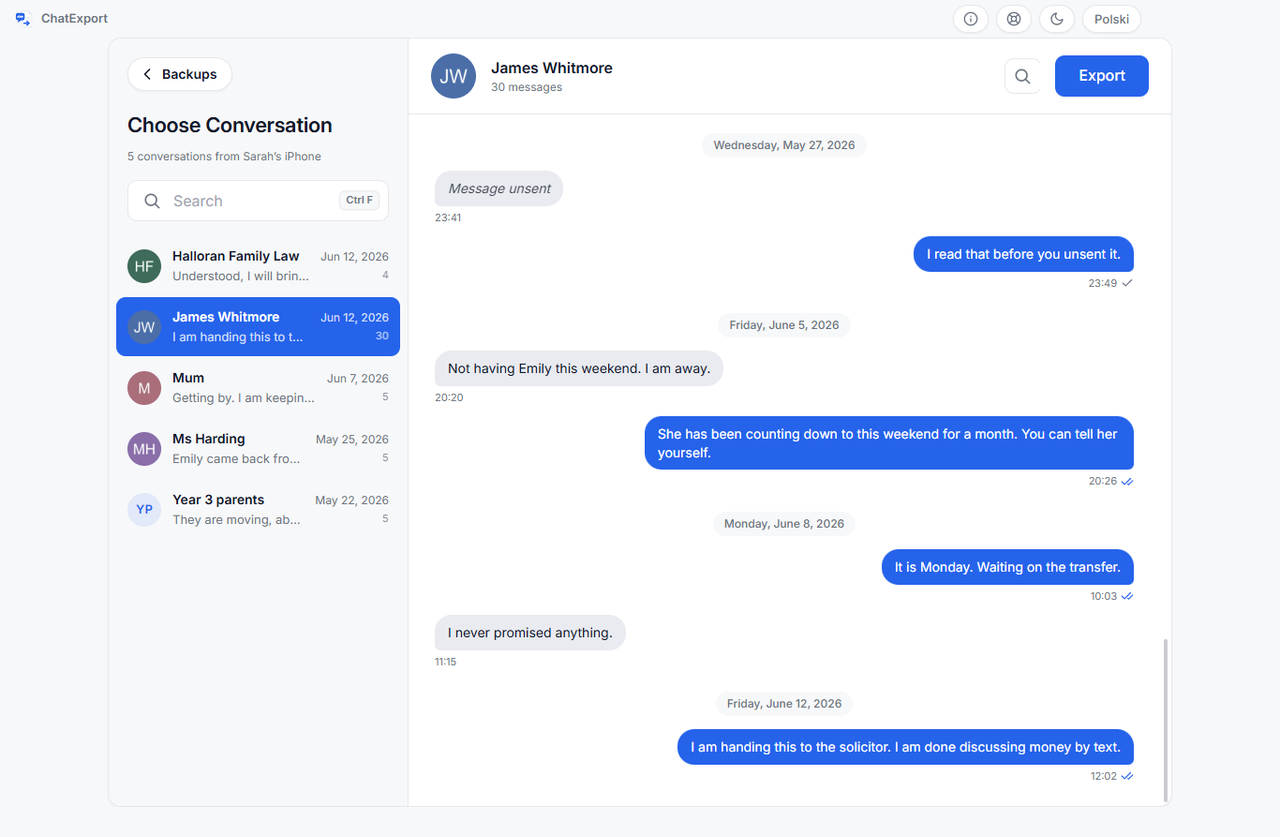
Five formats come out: PDF for reading and filing, CSV with fourteen columns for anything a machine has to process, HTML for sending somebody a searchable copy, TXT for the plainest archive, and RSMF for e-discovery platforms that expect it. What each of those fourteen columns holds is in export iPhone messages with metadata.
The trial exports the 50 most recent messages, watermarked on every page. That is deliberate rather than stingy: the whole program can be judged before paying, and a trial document cannot be quietly used as if it were the real one. The licence is paid once.
Two honest limits. It cannot produce a message the backup does not contain, so anything deleted before the backup was made and older than the phone’s own Recently Deleted window is gone as far as any tool is concerned. And when a sender unsends a message, the trace survives but the words do not, so you learn that it happened and never what it said.
Questions people ask
What is the fastest way to copy text messages from an iPhone to a computer?
For a handful, forward them out of Messages. For a conversation, make a backup with Apple’s own software and read the messages out of it: the backup takes one action and runs unattended, and it is the only route that leaves you a file you can use again.
Can I copy messages to a computer without iTunes?
Yes. On current Windows the Apple Devices app from the Microsoft Store replaced iTunes for this, and it writes the backup to a different folder. Both folders are searched, so it does not matter which of the two made the file.
Does this work if the iPhone is broken or gone?
If a backup was made before the phone stopped working, yes, and that is the strongest argument for this route over anything that needs the phone connected. If no backup exists and the phone is unavailable, no route on this page helps.
Can I copy them to a Mac instead?
Not with this program, which is Windows only for now. A Mac has Messages built in and its own history, which is a different situation with different answers.
Will this get back messages I deleted?
Only ones the backup still contains. Recent deletions can survive in the phone’s Recently Deleted store and reach a backup made while they were still there. Anything deleted longer ago than that window, before the backup was taken, is not in the file, and no software reading that file can produce it.
Does it work for WhatsApp as well?
Yes, by a different path: WhatsApp’s own Export Chat produces a file, and that file can be read directly, including one exported from an Android phone.